 DIMENSI
Connected Experiences Microsoft 365: Ciri Awan Memudahkan Kerja, Tetapi Semak Data yang Dihantar
Anda guna Word, Excel dan PowerPoint setiap hari. Anda tekan butang Designer untuk cantikkan slaid, atau guna Translator untuk terjemah e-mel. Kerja jadi lebih cepat.
Tetapi tahukah anda, sebahagian ciri ini memerlukan kandungan dokumen anda diproses oleh perkhidmatan awan (pelayan Microsoft di internet)? Ramai pekerja pejabat terus guna ciri ini tanpa tahu apa yang berlaku pada data mereka. Ini boleh jadi isu jika dokumen itu sulit.
Microsoft 365 ada tetapan privasi yang dipanggil connected experiences. Dalam artikel ini, kami terangkan apa maksudnya, jenis ciri yang terlibat, cara menyemak tetapan dan perkara yang anda perlu jaga.
Apa fungsinya
Connected experiences ialah ciri dalam Microsoft 365 yang disokong oleh perkhidmatan awan. Tetapan privasinya membolehkan anda melihat dan mengawal sama ada ciri awan ini aktif dalam aplikasi anda.
Menurut Microsoft, ada dua jenis utama:
- Experiences that analyze your content: Ciri yang menggunakan kandungan Microsoft 365 anda untuk memberi cadangan reka bentuk, cadangan suntingan dan wawasan data (data insights). Contohnya PowerPoint Designer, Dictate dan Translator.
- Experiences that download online content: Ciri yang mencari dan memuat turun kandungan dalam talian seperti templat, imej dan model 3D.
Untuk terjemahan, Microsoft menyatakan teks anda perlu dihantar ke perkhidmatan penterjemah automatiknya. Maksudnya, teks itu keluar dari komputer anda untuk diproses.
Ciri utama
- Kawalan ciri yang menganalisis kandungan: Anda boleh memilih sama ada ciri seperti Designer, Dictate dan Translator boleh menggunakan kandungan dokumen anda.
- Kawalan ciri yang memuat turun kandungan: Anda boleh mengawal ciri yang mencari templat, imej dan model 3D dari internet.
- Optional connected experiences: Ada ciri pilihan yang diurus berasingan. Contohnya 3D Maps dalam Excel yang menggunakan Bing.
- Tahap data diagnostik: Data diagnostik (maklumat teknikal tentang penggunaan dan prestasi aplikasi) ada tiga tahap, iaitu Required, Optional dan Neither.
- Banyak aplikasi: Tetapan ini melibatkan Word, Excel, PowerPoint, Outlook, OneNote, Access, Publisher dan Loop.
Harga
Tetapan connected experiences ialah sebahagian daripada aplikasi Microsoft 365. Ia sudah ada dalam aplikasi yang anda guna. Laman rasmi Microsoft yang kami semak tidak menyatakan harga atau pelan percuma untuk tetapan ini.
Harga disemak pada 11 November 2026 dan mungkin berubah.
Cara bermula
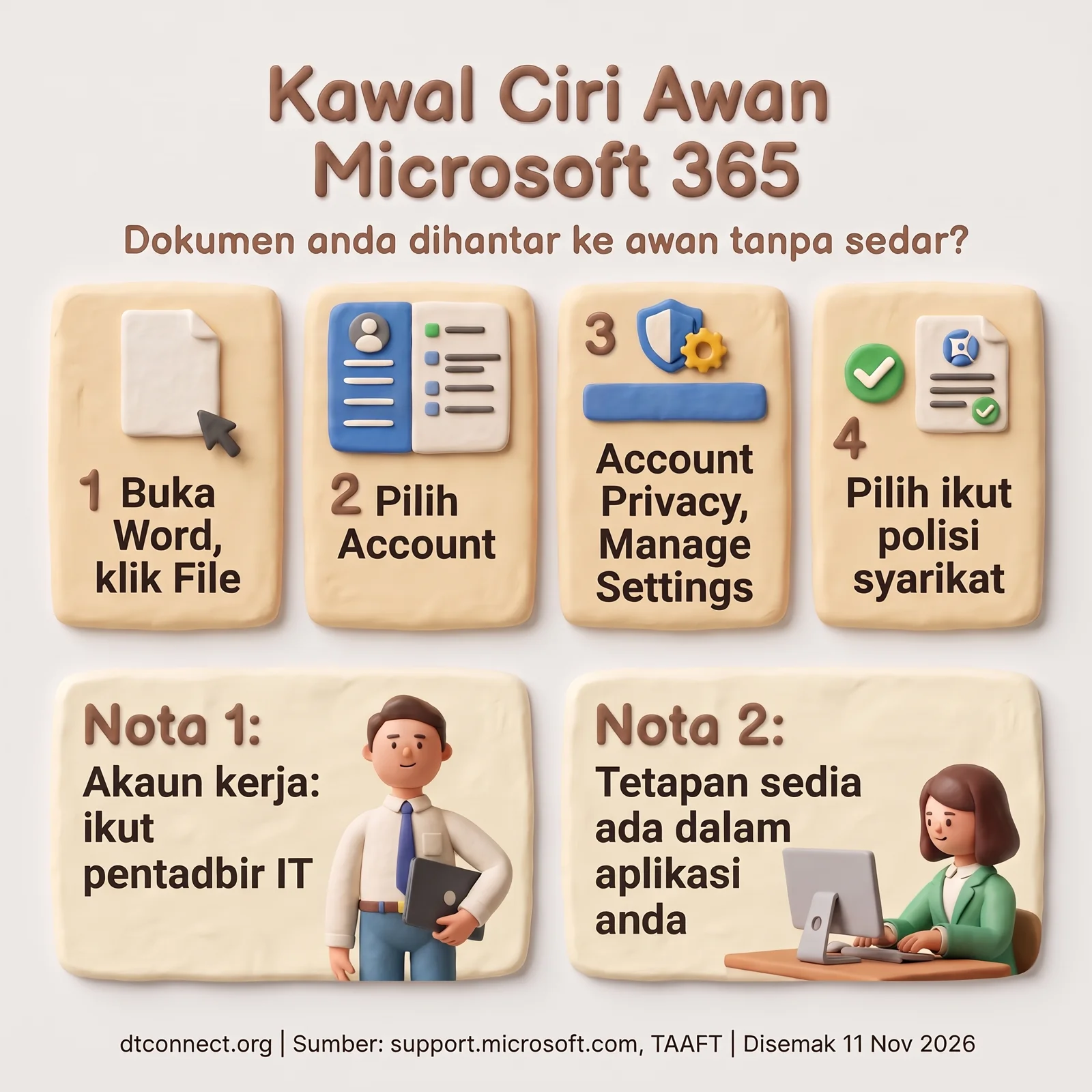
- Buka Word, Excel atau PowerPoint.
- Klik File, kemudian pilih Account. Dalam Outlook, pilih Office Account.
- Di bawah Account Privacy, klik Manage Settings.
- Baca penerangan setiap jenis connected experiences dan pilih yang sesuai dengan kerja anda.
- Jika anda guna Outlook baharu, pergi ke View, kemudian View settings, General, Privacy and data, dan Privacy settings.
Had dan perkara yang perlu diberi perhatian
Akaun kerja atau sekolah. Bagi akaun kerja atau sekolah, pentadbir IT boleh menetapkan polisi untuk tetapan ini. Anda mungkin tidak dapat mengubahnya sendiri. Ikut polisi organisasi anda.
Data perkhidmatan wajib tetap dihantar. Walaupun anda mematikan ciri ini, perkhidmatan penting seperti pelesenan (pengesahan lesen perisian) tetap berjalan. “Required service data” juga tetap dihantar kepada Microsoft.
Data diagnostik Optional. Microsoft menyatakan data diagnostik Optional “may also be used in aggregate to train machine learning experiences”, iaitu boleh digunakan secara agregat (dikumpul secara keseluruhan) untuk melatih pengalaman pembelajaran mesin. Optional ialah tetapan lalai, kecuali pentadbir mengubahnya. Halaman sokongan yang kami semak tidak menyebut apa-apa tentang penggunaan kandungan dokumen anda untuk tujuan ini.
Ciri mungkin tidak berfungsi. Jika anda mematikan connected experiences, ciri seperti Designer atau Translator mungkin tidak dapat digunakan. Timbang keperluan kerja anda.
Satu suis untuk semua. Halaman tetapan privasi akaun Microsoft menyebut satu suis yang mematikan semua connected experiences yang tidak penting. Ia tidak menyenaraikan suis untuk setiap ciri satu per satu.
Dokumen sulit. Jangan buka dokumen sulit dengan ciri awan jika polisi syarikat tidak membenarkan. Ingat bahawa teks terjemahan dihantar ke perkhidmatan Microsoft.
Bahasa Melayu. Sokongan bahasa Melayu untuk antara muka Microsoft 365 tidak disahkan dalam sumber yang kami semak.
Sesuai untuk siapa
Tetapan ini penting untuk semua pekerja pejabat yang guna Microsoft 365 setiap hari. Ia lebih penting lagi jika anda mengendalikan dokumen sulit, data pelanggan atau maklumat kewangan syarikat.
Pegawai IT dan pentadbir sistem juga perlu faham tetapan ini kerana mereka boleh menetapkan polisi untuk seluruh organisasi. Guru dan pelajar yang guna akaun sekolah pun boleh menyemak tetapan ini, walaupun pilihan mungkin dikawal oleh pentadbir.
Kesimpulan
Connected experiences menjadikan Microsoft 365 lebih pintar, tetapi sebahagian ciri memerlukan kandungan anda diproses di awan. Semak tetapan anda melalui File, Account, Account Privacy dan Manage Settings. Jika anda guna akaun kerja, ikut polisi pentadbir IT. Ingat juga, data perkhidmatan wajib tetap dihantar walaupun ciri dimatikan.
Sumber
- Microsoft Support, Connected experiences in Office: support.microsoft.com
- Microsoft Support, Account privacy settings: support.microsoft.com
- Microsoft Learn, Overview of privacy controls for Microsoft 365 Apps: learn.microsoft.com
Artikel ini bebas dan tidak ditaja. Ciri dan harga disemak pada 11 November 2026 dan mungkin berubah.
Read this article in English
You use Word, Excel and PowerPoint every day. You press the Designer button to tidy up a slide, or use Translator to translate an email. Work gets faster.
But did you know that some of these features need your document content to be processed by cloud services (Microsoft servers on the internet)? Many office workers use these features without knowing what happens to their data. This can be an issue if the document is confidential.
Microsoft 365 has a privacy setting called connected experiences. In this article, we explain what it means, the types of features involved, how to check the setting and what you need to watch out for.
What it does
Connected experiences are features in Microsoft 365 that are backed by cloud services. The privacy setting lets you see and control whether these cloud features are on in your apps.
According to Microsoft, there are two main types:
- Experiences that analyze your content: Features that use your Microsoft 365 content to give design recommendations, editing suggestions and data insights. Examples are PowerPoint Designer, Dictate and Translator.
- Experiences that download online content: Features that search for and download online content such as templates, images and 3D models.
For translation, Microsoft states that your text needs to be sent to its machine translation service. This means the text leaves your computer to be processed.
Key features
- Control over features that analyze content: You can choose whether features such as Designer, Dictate and Translator can use your document content.
- Control over features that download content: You can control features that search for templates, images and 3D models online.
- Optional connected experiences: Some optional features are managed separately. An example is 3D Maps in Excel, which uses Bing.
- Diagnostic data levels: Diagnostic data (technical information about app usage and performance) has three levels: Required, Optional and Neither.
- Many apps: This setting covers Word, Excel, PowerPoint, Outlook, OneNote, Access, Publisher and Loop.
Pricing
The connected experiences setting is part of the Microsoft 365 apps. It is already in the apps you use. The official Microsoft pages we checked do not state a price or a free plan for this setting.
Prices were checked on 11 November 2026 and may change.
Getting started
- Open Word, Excel or PowerPoint.
- Click File, then choose Account. In Outlook, choose Office Account.
- Under Account Privacy, click Manage Settings.
- Read the description of each type of connected experience and choose what suits your work.
- If you use the new Outlook, go to View, then View settings, General, Privacy and data, and Privacy settings.
Limits and things to watch
Work or school accounts. For work or school accounts, the IT administrator can set policies for this setting. You may not be able to change it yourself. Follow your organisation’s policy.
Required service data is still sent. Even if you turn these features off, essential services such as licensing (checking your software licence) keep running. “Required service data” is also still sent to Microsoft.
Optional diagnostic data. Microsoft states that Optional diagnostic data “may also be used in aggregate to train machine learning experiences”, meaning it can be used in aggregate (collected as a whole) to train machine learning experiences. Optional is the default setting unless the administrator changes it. The support pages we checked say nothing about your document content being used for this purpose.
Features may stop working. If you turn off connected experiences, features such as Designer or Translator may not be available. Weigh up what your work needs.
One switch for all. Microsoft’s account privacy settings page mentions one switch that turns off all non-essential connected experiences. It does not list a switch for each feature one by one.
Confidential documents. Do not open confidential documents with cloud features if company policy does not allow it. Remember that text for translation is sent to a Microsoft service.
Malay language. Malay language support for the Microsoft 365 interface was not confirmed in the sources we checked.
Who it is for
This setting matters for every office worker who uses Microsoft 365 daily. It matters even more if you handle confidential documents, customer data or company financial information.
IT officers and system administrators also need to understand this setting because they can set policies for the whole organisation. Teachers and students using school accounts can also check this setting, although the options may be controlled by an administrator.
Conclusion
Connected experiences make Microsoft 365 smarter, but some features need your content to be processed in the cloud. Check your settings through File, Account, Account Privacy and Manage Settings. If you use a work account, follow your IT administrator’s policy. Also remember that required service data is still sent even when the features are turned off.
Sources
- Microsoft Support, Connected experiences in Office: support.microsoft.com
- Microsoft Support, Account privacy settings: support.microsoft.com
- Microsoft Learn, Overview of privacy controls for Microsoft 365 Apps: learn.microsoft.com
This article is independent and not sponsored. Features and prices were checked on 11 November 2026 and may change.