 DIMENSI
Microsoft Recall di PC Copilot+: Cara Tapis, Jeda dan Padam Snapshot untuk Lindungi Data Kerja
Anda baru menerima laptop baharu di pejabat. Kemudian anda terdengar bahawa komputer ini boleh “mengingati” semua yang pernah dipaparkan di skrin. Soalan pertama yang timbul: adakah slip gaji, kata laluan dan e-mel sulit anda turut disimpan?
Kebimbangan ini wajar. Skrin kerja selalu memaparkan maklumat sulit, seperti data pekerja, akaun kewangan dan butiran pelanggan. Ramai pengguna pula membiarkan tetapan baharu tanpa menyemaknya. Ciri yang dimaksudkan ialah Microsoft Recall. Artikel ini menerangkan apa yang Recall lakukan dan cara anda mengawalnya supaya data kerja kekal selamat.
Apa fungsinya
Recall ialah ciri Windows 11 khusus untuk PC Copilot+. Ia menyimpan snapshot (gambar skrin yang diambil secara berkala) supaya anda boleh mencari semula apa yang pernah anda lihat, contohnya dokumen atau laman web yang anda buka minggu lepas. Statusnya masih “preview” (versi percubaan).
Perkara penting yang perlu anda tahu: Recall mati secara lalai. Snapshot hanya disimpan selepas anda sendiri memilih untuk menghidupkannya. Jika PC dikongsi, setiap pengguna perlu menghidupkannya sendiri.
Anda boleh membuka Recall dengan menekan Windows + J, melalui Start, kemudian All apps dan Recall, atau melalui ikonnya di taskbar. Anda boleh mencari dengan menaip atau menggunakan mikrofon. Hasil carian dibahagikan kepada “text matches” (padanan teks) dan “visual matches” (padanan visual).
Ciri utama
- Simpanan dalam PC sahaja: Snapshot diproses dan disimpan dalam PC itu sahaja, dan sentiasa disulitkan (dikunci dengan kod supaya tidak boleh dibaca tanpa kebenaran). Microsoft menyatakan snapshot tidak dikongsi dengan Microsoft atau pihak ketiga.
- Kunci Windows Hello: Anda perlu Windows Hello dengan sekurang-kurangnya satu pilihan biometrik (pengesahan wajah atau cap jari) untuk membuka Recall dan menukar tetapannya.
- Senarai tapisan: Anda boleh menambah aplikasi dan laman web yang tidak mahu dirakam. Tapisan laman web hanya berfungsi pada Edge, Firefox, Opera dan Chrome.
- Sensitive information filtering: Ciri ini hidup secara lalai. Ia mengurangkan kata laluan, nombor kad pengenalan nasional dan nombor kad kredit dalam snapshot.
- Jeda dan padam: Anda boleh menjeda Recall melalui ikonnya di dulang sistem (system tray, iaitu kawasan ikon kecil di hujung taskbar). Semua snapshot boleh dipadam melalui tetapan.
- Had storan dan tempoh simpanan: Anda boleh mengubah berapa banyak ruang yang digunakan dan berapa lama snapshot disimpan.
- Pengecualian automatik: Tetingkap InPrivate atau Incognito (mod pelayaran peribadi) dan kandungan DRM (kandungan dilindungi hak cipta) tidak disimpan.
Harga
Recall ialah ciri terbina dalam Windows 11 pada PC Copilot+. Sumber rasmi tidak menyatakan sebarang harga atau pelan berbayar berasingan untuk Recall. Namun, anda memerlukan perkakasan yang memenuhi syarat berikut:
- PC Copilot+ dengan NPU (cip khas untuk tugasan AI) berkuasa 40 TOPS
- RAM 16 GB
- Storan 256 GB, dengan sekurang-kurangnya 50 GB ruang kosong
- Enkripsi peranti atau BitLocker dihidupkan
Harga disemak pada 3 November 2026 dan mungkin berubah.
Cara bermula
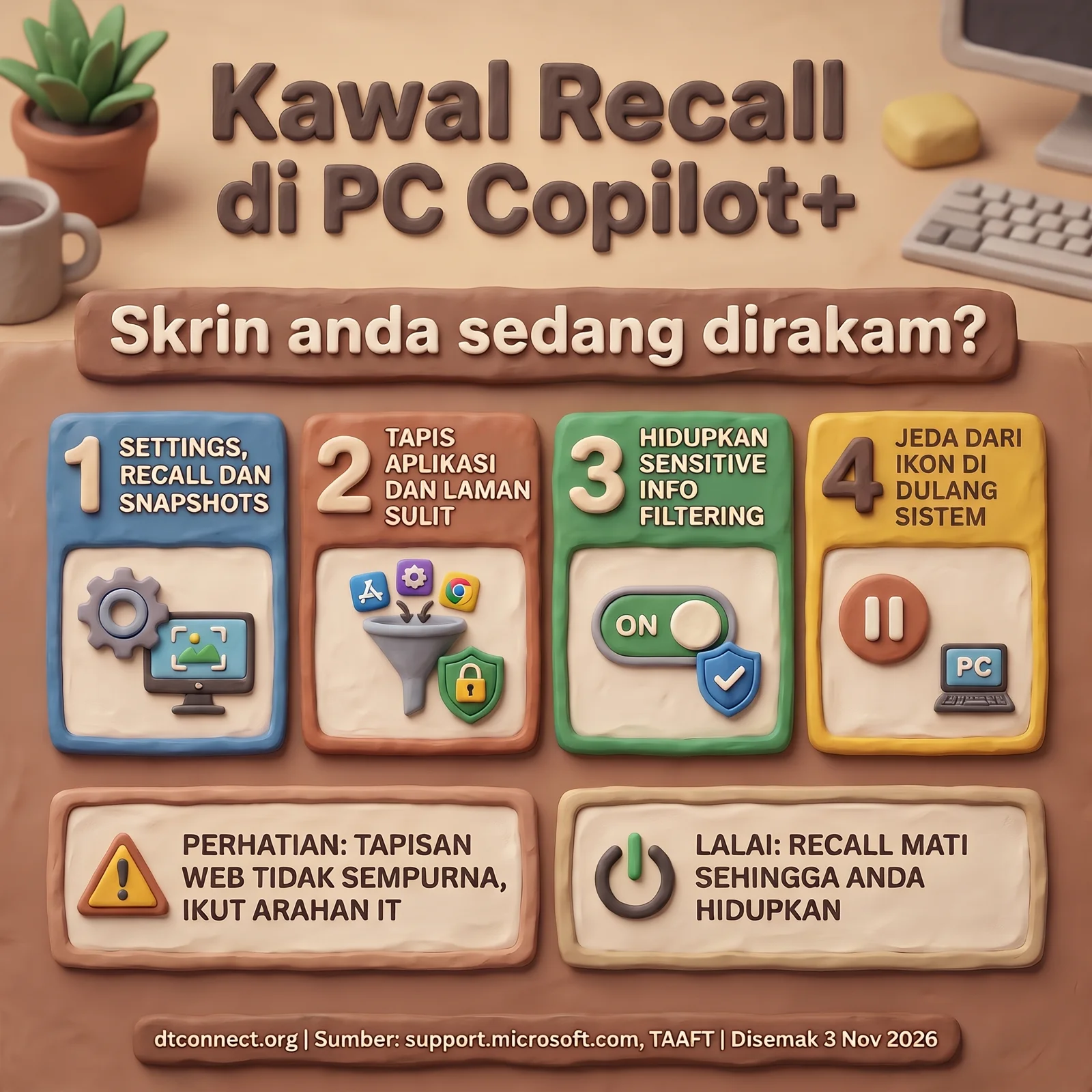
- Buka Settings, pilih Privacy & security, kemudian Recall & snapshots.
- Tambah aplikasi dan laman web sulit ke senarai tapisan, contohnya aplikasi perbankan, sistem HR dan e-mel sulit. Untuk menapis semua pelayaran web, tambah pelayar itu sendiri sebagai tapisan aplikasi.
- Pastikan Sensitive information filtering kekal hidup.
- Klik ikon Recall di dulang sistem untuk menjeda rakaman semasa anda melakukan kerja sulit.
- Padam snapshot lama, atau hadkan storan dan tempoh simpanan. Jika snapshot memaparkan aplikasi atau laman yang belum ditapis, gunakan “Delete all” dalam hasil carian.
Had dan perkara yang perlu diberi perhatian
- Tapisan laman web tidak sempurna. Ia hanya meliputi tab yang sedang dibuka. Kandungan terbenam, sejarah pelayar atau tab latar masih boleh terakam.
- Maklum balas yang anda hantar kepada Microsoft tentang Recall boleh membawa data Recall bersamanya.
- Halaman rasmi tidak menyatakan sama ada snapshot digunakan untuk melatih model AI. Ia hanya menyatakan snapshot tidak dikongsi dengan Microsoft.
- Rakaman berhenti apabila ruang kosong kurang daripada 25 GB. Snapshot paling lama dipadam apabila had storan dicapai.
- Recall dioptimumkan untuk Bahasa Inggeris, Cina Ringkas, Perancis, Jerman, Jepun dan Sepanyol. Bahasa Melayu tidak disenaraikan.
- Pada peranti kerja atau sekolah yang diurus, Recall dibuang secara lalai sehingga admin IT membenarkannya. Jika ini komputer pejabat, ikut arahan jabatan IT anda.
- Jika anda tidak mahu menggunakannya langsung, Recall boleh dibuang melalui “Turn Windows features on or off”.
- Pada pandangan kami, skrin anda juga mungkin memaparkan maklumat orang lain, seperti rakan sekerja atau pelanggan. Fikirkan perkara ini sebelum menghidupkan Recall.
Sesuai untuk siapa
Panduan ini sesuai untuk pekerja yang baru menerima laptop Copilot+, terutamanya mereka yang mengurus data HR, kewangan atau pelanggan. Recall boleh membantu anda mencari semula kerja lama dengan cepat. Namun, nilainya bergantung pada sejauh mana anda mengawal apa yang dirakam.
Kesimpulan
Recall tidak merakam apa-apa sehingga anda menghidupkannya. Snapshot disimpan dan disulitkan dalam PC anda sahaja, dan dilindungi Windows Hello. Jika anda memilih untuk menggunakannya, luangkan beberapa minit untuk menapis aplikasi sulit, kekalkan penapisan maklumat sensitif, jeda semasa kerja sulit dan padam snapshot secara berkala. Semak tetapan anda hari ini.
Sumber
- Microsoft Support, Privacy and control over your Recall experience: support.microsoft.com
- Microsoft Support, Retrace your steps with Recall: support.microsoft.com
Artikel ini bebas dan tidak ditaja. Ciri dan harga disemak pada 3 November 2026 dan mungkin berubah.
Read this article in English
You have just received a new laptop at the office. Then you hear that this computer can “remember” everything that has ever appeared on screen. The first question that comes to mind: are your payslip, passwords and confidential emails being saved too?
This concern is reasonable. A work screen often shows confidential information, such as employee data, financial accounts and customer details. Many users also leave new settings as they are without checking them. The feature in question is Microsoft Recall. This article explains what Recall does and how you can control it so that your work data stays safe.
What it does
Recall is a Windows 11 feature exclusive to Copilot+ PCs. It saves snapshots (screen images taken at regular intervals) so that you can find again what you have seen before, for example a document or web page you opened last week. Its status is still “preview”.
An important point to know: Recall is off by default. Snapshots are only saved after you yourself choose to turn it on. On a shared PC, each user must turn it on for themselves.
You can open Recall by pressing Windows + J, through Start, then All apps and Recall, or through its icon on the taskbar. You can search by typing or by using the microphone. Search results are split into “text matches” and “visual matches”.
Key features
- Stored on the PC only: Snapshots are processed and stored on that PC only, and are always encrypted. Microsoft states that snapshots are not shared with Microsoft or third parties.
- Windows Hello lock: You need Windows Hello with at least one biometric option (face or fingerprint) to open Recall and change its settings.
- Filter list: You can add apps and websites you do not want recorded. Website filtering only works in Edge, Firefox, Opera and Chrome.
- Sensitive information filtering: This is on by default. It reduces passwords, national ID numbers and credit card numbers in snapshots.
- Pause and delete: You can pause Recall through its icon in the system tray. All snapshots can be deleted through settings.
- Storage limit and retention period: You can change how much space is used and how long snapshots are kept.
- Automatic exclusions: InPrivate or Incognito windows and DRM content are not saved.
Pricing
Recall is a built-in Windows 11 feature on Copilot+ PCs. The official sources do not state any separate price or paid plan for Recall. However, you need hardware that meets these requirements:
- A Copilot+ PC with a 40 TOPS NPU
- 16 GB RAM
- 256 GB storage, with at least 50 GB free
- Device encryption or BitLocker turned on
Pricing checked on 3 November 2026 and may change.
How to get started
- Open Settings, choose Privacy & security, then Recall & snapshots.
- Add confidential apps and websites to the filter list, for example banking apps, HR systems and confidential email. To filter all web browsing, add the browser itself as an app filter.
- Make sure Sensitive information filtering stays on.
- Click the Recall icon in the system tray to pause recording while you do confidential work.
- Delete old snapshots, or limit storage and the retention period. If a snapshot shows an app or site that was not yet filtered, use “Delete all” in the search results.
Limitations and things to watch
- Website filtering is not perfect. It only covers the tab currently open. Embedded content, browser history or background tabs can still be captured.
- Feedback you send to Microsoft about Recall can carry Recall data with it.
- The official page does not state whether snapshots are used to train AI models. It only states that snapshots are not shared with Microsoft.
- Recording stops when free space falls below 25 GB. The oldest snapshots are deleted when the storage limit is reached.
- Recall is optimised for English, Simplified Chinese, French, German, Japanese and Spanish. Malay is not listed.
- On managed work or school devices, Recall is removed by default until the IT admin allows it. If this is an office computer, follow your IT department’s instructions.
- If you do not want to use it at all, Recall can be removed through “Turn Windows features on or off”.
- In our view, your screen may also show other people’s information, such as colleagues or customers. Consider this before turning Recall on.
Who it is for
This guide suits workers who have just received a Copilot+ laptop, especially those handling HR, finance or customer data. Recall can help you find past work quickly. However, its value depends on how well you control what gets recorded.
Conclusion
Recall records nothing until you turn it on. Snapshots are stored and encrypted on your PC only, and protected by Windows Hello. If you choose to use it, take a few minutes to filter confidential apps, keep sensitive information filtering on, pause during confidential work and delete snapshots regularly. Check your settings today.
Sources
- Microsoft Support, Privacy and control over your Recall experience: support.microsoft.com
- Microsoft Support, Retrace your steps with Recall: support.microsoft.com
This article is independent and not sponsored. Features and pricing checked on 3 November 2026 and may change.