 DIMENSI
Buang Ikon Copilot Belum Cukup: Cara Betul Matikan Copilot dalam Word dan Excel
Anda menggunakan Word atau Excel di rumah dengan langganan Microsoft 365 Personal atau Family. Kadangkala anda membuka dokumen kerja yang sulit pada komputer itu. Kemudian anda terfikir: adakah Copilot (pembantu AI, iaitu kecerdasan buatan, milik Microsoft) membaca dokumen ini?
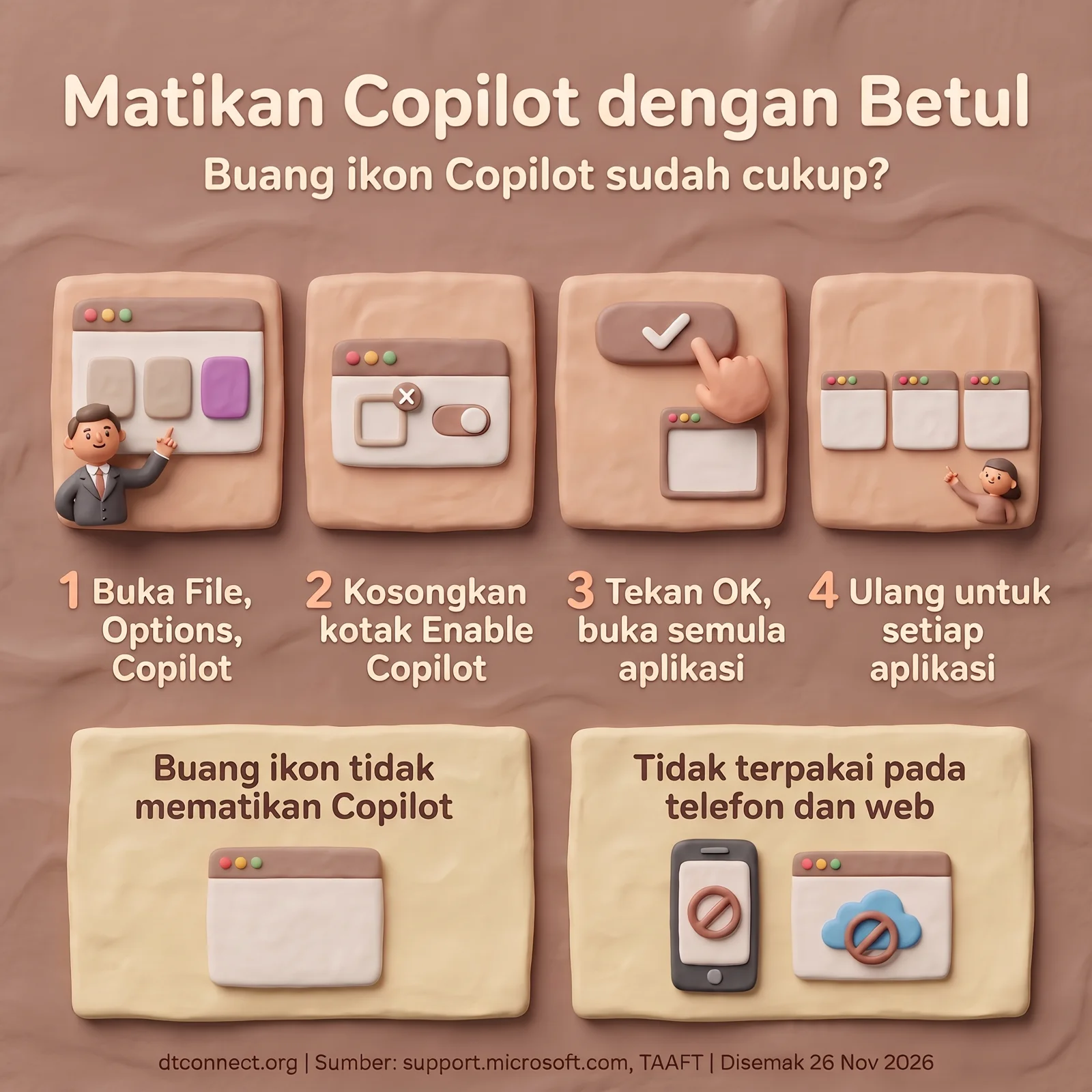
Ramai orang cuba menyelesaikannya dengan membuang ikon Copilot daripada reben (jalur menu di bahagian atas aplikasi). Cara ini nampak mudah, tetapi ia tidak mematikan Copilot. Copilot masih boleh dibuka dari tempat lain, contohnya menu pintasan (menu yang muncul apabila anda klik kanan).
Microsoft sebenarnya menyediakan tetapan khas bernama Enable Copilot untuk mematikan Copilot dengan betul. Artikel ini menerangkan fungsinya, langkah demi langkah dan had yang perlu anda tahu. Semua maklumat diambil daripada halaman sokongan rasmi Microsoft.
Apa fungsinya
Enable Copilot ialah satu kotak tanda dalam tetapan Word, Excel, PowerPoint dan OneNote. Apabila anda mengosongkan kotak ini, Copilot dimatikan dalam aplikasi tersebut. Tetapan ini untuk pengguna yang log masuk dengan akaun Microsoft peribadi, bukan akaun kerja atau sekolah.
Perlu diingat, kotak ini berfungsi bagi setiap aplikasi dan setiap peranti secara berasingan. Jika anda mematikannya dalam Word, Excel masih belum dimatikan. Jika anda mematikannya pada komputer riba, komputer meja anda masih belum terjejas. Selain itu, tetapan ini memberi kesan kepada semua orang yang menggunakan peranti yang sama.
Outlook pula menggunakan cara yang berbeza, iaitu togol (suis hidup atau mati) bernama Turn on Copilot. Togol Outlook ini terpakai pada semua peranti yang menggunakan akaun yang sama.
Ciri utama
- Kotak Enable Copilot mematikan Copilot dalam Word, Excel, PowerPoint dan OneNote.
- Di Windows, tetapan berada di File, Options, Copilot.
- Di Mac, tetapan berada di menu aplikasi, Preferences, Authoring and Proofing Tools, Copilot.
- Versi minimum di Windows ialah Word 2412, Excel 2501, PowerPoint 2501 dan OneNote 2502.
- Tetapan berfungsi bagi setiap aplikasi dan setiap peranti.
- Outlook ada togol Turn on Copilot. Di telefon dan Mac, ia berada di Quick Settings, Copilot. Di web dan Outlook baharu, ia berada di Settings, Copilot.
- Microsoft menyatakan gesaan (arahan yang anda taip), respons dan kandungan fail semasa menggunakan Copilot dalam aplikasi Microsoft 365 tidak digunakan untuk melatih model asas (sistem AI utama).
- Menurut Microsoft, Copilot hanya menggunakan kandungan fail yang sedang anda buka, ditambah fail lain yang anda minta ia lihat.
Harga
Tetapan Enable Copilot bukan alat yang dijual secara berasingan. Ia ialah tetapan dalam aplikasi Microsoft 365 bagi pelan berbayar untuk pengguna peribadi, iaitu Microsoft 365 Personal, Family, Premium atau Pro. Jadi, anda tidak perlu membayar apa-apa tambahan untuk mematikan Copilot.
Halaman sumber yang dirujuk tidak menyatakan harga langganan pelan tersebut. Oleh itu, artikel ini tidak menyenaraikan sebarang harga. Rujuk laman rasmi Microsoft jika anda mahu mengetahui harga langganan terkini.
Harga disemak pada 26 November 2026 dan mungkin berubah.
Cara bermula
- Buka Word di komputer Windows. Pergi ke File, kemudian Options, kemudian Copilot.
- Kosongkan kotak Enable Copilot, kemudian tekan OK.
- Tutup Word dan buka semula supaya tetapan berkuat kuasa.
- Ulang langkah yang sama untuk Excel, PowerPoint dan OneNote. Lakukan juga pada setiap peranti yang anda gunakan.
- Jika anda menggunakan Mac, buka menu aplikasi, pilih Preferences, Authoring and Proofing Tools, kemudian Copilot. Kosongkan Enable Copilot dan mulakan semula aplikasi.
- Untuk Outlook, matikan togol Turn on Copilot dalam Settings atau Quick Settings.
Had dan perkara yang perlu diberi perhatian
- Membuang ikon Copilot daripada reben tidak mematikan Copilot. Ia masih boleh dibuka dari tempat lain seperti menu pintasan.
- Tetapan hanya berkesan bagi aplikasi dan peranti yang anda ubah. Anda perlu mengulanginya satu demi satu.
- Tetapan pada satu peranti memberi kesan kepada semua orang yang menggunakan peranti itu, contohnya ahli keluarga yang berkongsi komputer.
- Word, Excel dan PowerPoint di iOS, Android dan web tidak boleh dimatikan dengan cara ini.
- Tetapan ini untuk akaun Microsoft peribadi. Akaun kerja atau sekolah tidak termasuk.
- Pastikan aplikasi anda sudah dikemas kini kepada versi minimum yang dinyatakan. Jika tidak, kotak Enable Copilot mungkin tidak kelihatan.
- Outlook klasik di Windows belum ada tarikh untuk togol Turn on Copilot.
- Halaman privasi Microsoft tidak menyatakan tempoh data disimpan.
- Walaupun Microsoft menyatakan kandungan fail tidak melatih model asas, sebaiknya elakkan menyimpan dokumen sulit pejabat dalam akaun peribadi.
Sesuai untuk siapa
Tetapan ini sesuai untuk pekerja pejabat yang menggunakan Microsoft 365 Personal atau Family di rumah dan kadangkala membuka fail kerja. Contohnya, kerani, pembantu tadbir dan pegawai yang menyiapkan laporan pada waktu malam.
Ia juga sesuai untuk keluarga yang berkongsi satu komputer dan mahu mengawal penggunaan AI dalam aplikasi pejabat. Ibu bapa boleh mematikan Copilot pada komputer keluarga dengan beberapa klik sahaja.
Namun, jika anda menggunakan akaun kerja atau sekolah, tetapan ini tidak berkenaan. Berbincang dengan bahagian IT organisasi anda.
Kesimpulan
Membuang ikon Copilot belum cukup untuk mematikannya. Cara yang betul ialah mengosongkan kotak Enable Copilot dalam File, Options, Copilot, menekan OK dan membuka semula aplikasi. Ulang untuk Word, Excel, PowerPoint dan OneNote pada setiap peranti. Ingat, cara ini tidak terpakai pada versi telefon dan web. Microsoft menyatakan kandungan fail tidak melatih model asas, tetapi tetap berhati-hati dengan dokumen sulit. Semak tetapan anda hari ini.
Sumber
- Microsoft Support: Turn off Copilot in Microsoft 365 apps
- Microsoft Support: Copilot in Microsoft 365 apps for home, data dan privasi anda
Artikel ini bebas dan tidak ditaja. Ciri dan harga disemak pada 26 November 2026 dan mungkin berubah.
Read this article in English
You use Word or Excel at home with a Microsoft 365 Personal or Family subscription. Sometimes you open confidential work documents on that computer. Then you wonder: is Copilot (Microsoft’s AI, or artificial intelligence, assistant) reading this document?
Many people try to solve this by removing the Copilot icon from the ribbon (the menu strip at the top of the app). This looks easy, but it does not turn Copilot off. Copilot can still be opened from other places, for example the shortcut menu (the menu that appears when you right-click).
Microsoft actually provides a dedicated setting called Enable Copilot to turn Copilot off properly. This article explains what it does, the steps one by one and the limits you should know. All information comes from Microsoft’s official support pages.
What it does
Enable Copilot is a checkbox in the settings of Word, Excel, PowerPoint and OneNote. When you clear this box, Copilot is turned off in that app. This setting is for users signed in with a personal Microsoft account, not a work or school account.
Keep in mind that the box works for each app and each device separately. If you turn it off in Word, Excel is not yet turned off. If you turn it off on your laptop, your desktop computer is not affected. In addition, the setting affects everyone who uses the same device.
Outlook uses a different method, a toggle (an on or off switch) called Turn on Copilot. This Outlook toggle applies to all devices that use the same account.
Key features
- The Enable Copilot box turns off Copilot in Word, Excel, PowerPoint and OneNote.
- On Windows, the setting is in File, Options, Copilot.
- On Mac, the setting is in the app menu, Preferences, Authoring and Proofing Tools, Copilot.
- The minimum versions on Windows are Word 2412, Excel 2501, PowerPoint 2501 and OneNote 2502.
- The setting works per app and per device.
- Outlook has a Turn on Copilot toggle. On phones and Mac, it is in Quick Settings, Copilot. On the web and new Outlook, it is in Settings, Copilot.
- Microsoft states that prompts (the instructions you type), responses and file content when using Copilot in Microsoft 365 apps are not used to train foundation models (the main AI systems).
- According to Microsoft, Copilot only uses the content of the file you have open, plus other files you ask it to look at.
Pricing
The Enable Copilot setting is not a tool sold separately. It is a setting inside Microsoft 365 apps on paid plans for personal users, namely Microsoft 365 Personal, Family, Premium or Pro. So you do not need to pay anything extra to turn Copilot off.
The source pages referred to do not state the subscription prices of these plans. Therefore, this article does not list any prices. Refer to Microsoft’s official site if you want to know the latest subscription prices.
Pricing checked on 26 November 2026 and may change.
How to get started
- Open Word on a Windows computer. Go to File, then Options, then Copilot.
- Clear the Enable Copilot box, then press OK.
- Close Word and open it again so the setting takes effect.
- Repeat the same steps for Excel, PowerPoint and OneNote. Do this on every device you use as well.
- If you use a Mac, open the app menu, choose Preferences, Authoring and Proofing Tools, then Copilot. Clear Enable Copilot and restart the app.
- For Outlook, switch off the Turn on Copilot toggle in Settings or Quick Settings.
Limits and things to watch
- Removing the Copilot icon from the ribbon does not turn Copilot off. It can still be opened from other places such as the shortcut menu.
- The setting only applies to the app and device you change. You need to repeat it one by one.
- The setting on one device affects everyone who uses that device, for example family members who share a computer.
- Word, Excel and PowerPoint on iOS, Android and the web cannot be turned off this way.
- This setting is for personal Microsoft accounts. Work or school accounts are not included.
- Make sure your apps are updated to the minimum versions stated. Otherwise, the Enable Copilot box may not appear.
- Classic Outlook on Windows does not yet have a date for the Turn on Copilot toggle.
- Microsoft’s privacy page does not state how long data is kept.
- Although Microsoft states that file content does not train foundation models, it is best to avoid keeping confidential work documents in a personal account.
Who it suits
This setting suits office workers who use Microsoft 365 Personal or Family at home and sometimes open work files. For example, clerks, administrative assistants and officers who finish reports at night.
It also suits families who share one computer and want to control the use of AI in office apps. Parents can turn off Copilot on the family computer with just a few clicks.
However, if you use a work or school account, this setting does not apply. Talk to your organisation’s IT department.
Conclusion
Removing the Copilot icon is not enough to turn it off. The right way is to clear the Enable Copilot box in File, Options, Copilot, press OK and reopen the app. Repeat for Word, Excel, PowerPoint and OneNote on every device. Remember, this method does not apply to the phone and web versions. Microsoft states that file content does not train foundation models, but stay careful with confidential documents. Check your settings today.
Sources
- Microsoft Support: Turn off Copilot in Microsoft 365 apps
- Microsoft Support: Copilot in Microsoft 365 apps for home, your data and privacy
This article is independent and not sponsored. Features and pricing checked on 26 November 2026 and may change.