 DIMENSI
Chatbot AI di Firefox: Pilih Penyedia dan Tahu Data Apa yang Dihantar
Bayangkan anda sedang membaca laporan panjang di pelayar (browser) pada waktu pejabat. Anda mahu ringkasan cepat, jadi anda salin sebahagian teks dan tampal ke dalam chatbot AI di tab lain. Kerja siap, tetapi satu soalan jarang ditanya: ke mana sebenarnya teks itu pergi?
Ramai pekerja pejabat guna chatbot AI setiap hari tanpa tahu data apa yang keluar dari komputer mereka. Ini penting apabila dokumen yang dibaca ialah laporan dalaman, maklumat pelanggan atau data syarikat.
Firefox ada ciri chatbot AI di bar sisi (sidebar, iaitu panel kecil di tepi tetingkap pelayar). Dalam artikel ini, kita lihat cara ciri ini berfungsi, cara memilih penyedia sendiri, dan yang paling penting, data apa yang dihantar kepada penyedia chatbot.
Apa fungsinya
Ciri ini membolehkan anda membuka chatbot AI terus di bar sisi Firefox. Anda tidak perlu menukar tab. Chatbot berada di sebelah halaman yang sedang anda baca.
Firefox sendiri bukan chatbot. Ia hanya memberi ruang untuk anda menggunakan chatbot daripada penyedia (syarikat yang membina chatbot itu) yang anda pilih. Pilihan yang disenaraikan ialah Anthropic Claude, ChatGPT, Copilot (mulai Firefox versi 143), Google Gemini dan Mistral Vibe (dahulu dikenali sebagai Le Chat).
Ciri utama
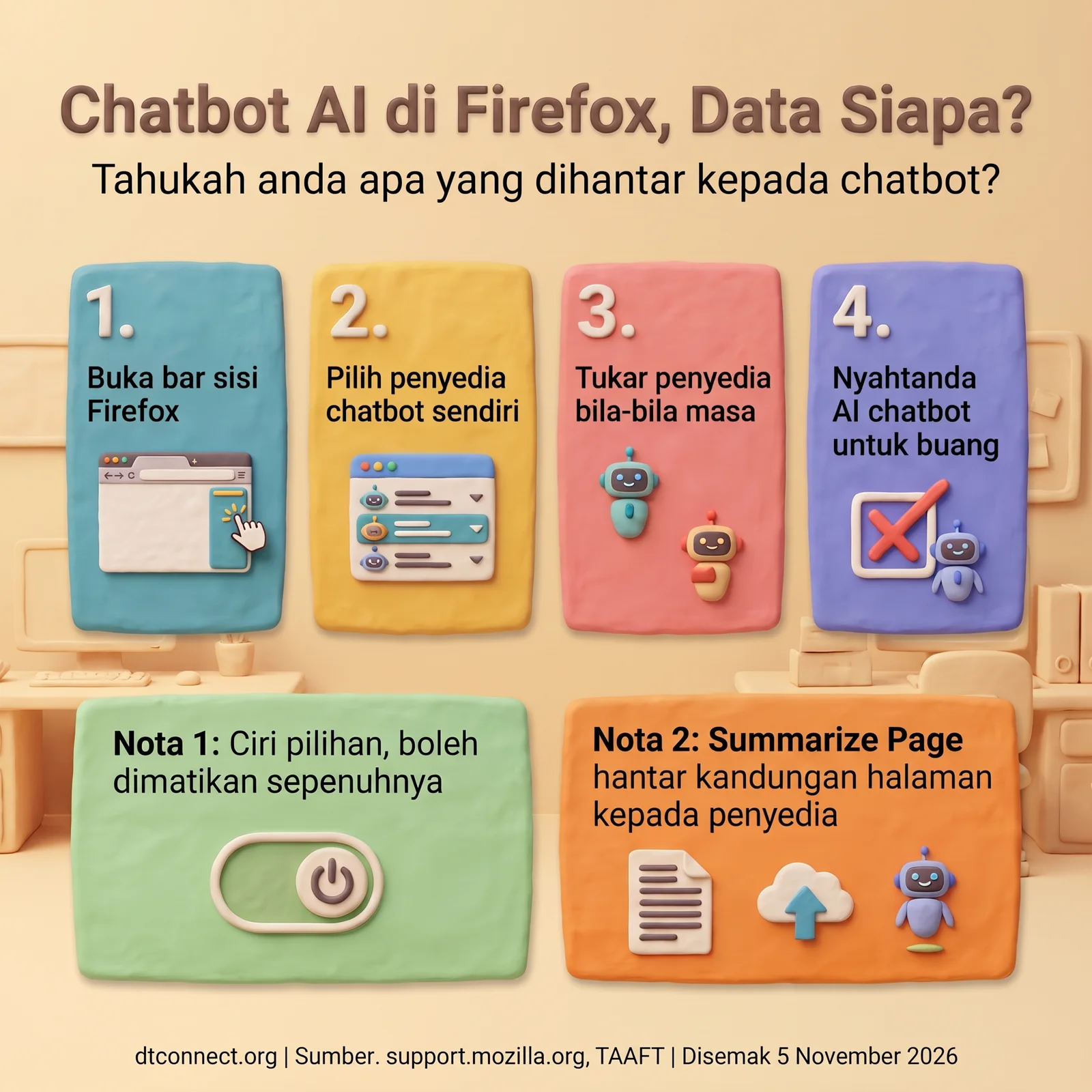
- Pilih penyedia sendiri. Anda tentukan chatbot mana yang mahu digunakan daripada senarai penyedia yang ada.
- Tukar penyedia bila-bila masa. Jika tidak berpuas hati, anda boleh beralih kepada chatbot lain dengan beberapa klik.
- Cadangan arahan (suggested prompts). Apabila anda pilih teks pada halaman, Firefox boleh mencadangkan arahan siap untuk dihantar kepada chatbot.
- Summarize Page. Pintasan untuk meminta chatbot meringkaskan halaman yang sedang dibuka.
- Boleh disembunyikan atau dibuang. Anda boleh sembunyikan pintasan chatbot semasa memilih teks, atau buang terus chatbot daripada bar sisi.
Harga
Sumber rasmi yang kami semak tidak menyatakan harga untuk pelayar Firefox itu sendiri. Kami tidak membuat sebarang dakwaan tentang harga Firefox.
Setiap penyedia chatbot (Claude, ChatGPT, Copilot, Gemini dan Mistral Vibe) mempunyai pelan dan syarat masing-masing. Sila semak laman rasmi penyedia yang anda pilih sebelum melanggan apa-apa pelan. Harga disemak pada 5 November 2026 dan mungkin berubah.
Cara bermula
- Buka bar sisi Firefox. Jika bar sisi tersembunyi, pergi ke Settings dan pilih Show sidebar di bawah Browser Layout, atau klik ikon Sidebar pada bar alat.
- Klik butang bintang (sparkle) di bar sisi. Pilih penyedia chatbot yang anda mahu, kemudian klik Continue.
- Pilih teks pada halaman yang sedang dibaca dan guna cadangan arahan yang muncul.
- Untuk menukar penyedia, klik ikon chatbot di bar sisi, klik nama chatbot semasa, kemudian pilih chatbot lain daripada senarai.
- Untuk membuang chatbot, klik butang tetapan bar sisi. Dalam panel Customize sidebar, nyahtanda AI chatbot di bahagian Firefox tools.
Had dan perkara yang perlu diberi perhatian
Bahagian ini paling penting dari segi keselamatan data. Berikut perkara yang perlu anda tahu:
- Chatbot di bar sisi sama seperti tab biasa. Apabila chatbot dibuka di bar sisi, penyedia mengumpul maklumat yang sama seperti jika anda membuka laman chatbot itu dalam tab Firefox biasa.
- Cadangan arahan menghantar teks anda. Teks yang anda pilih, arahan yang digunakan dan tajuk halaman akan dihantar kepada penyedia.
- Summarize Page menghantar seluruh kandungan halaman. Kandungan halaman, arahan dan tajuk halaman semuanya dihantar kepada penyedia. Jangan gunakan ciri ini pada halaman sulit, contohnya sistem dalaman syarikat, rekod pelanggan atau dokumen kewangan.
- Firefox tidak membaca perbualan anda. Menurut Mozilla, Firefox tidak mempunyai akses kepada perbualan chatbot anda, atau halaman dan teks yang anda hantar melalui pintasan AI. Data itu pergi kepada penyedia chatbot, jadi dasar privasi penyedia itulah yang perlu anda semak.
- Firefox tetap mengumpul data penggunaan. Firefox mengumpul data interaksi (telemetri, iaitu data tentang cara ciri digunakan), contohnya berapa kerap setiap penyedia dipilih dan berapa kerap cadangan arahan digunakan.
- Tetapan asal tidak dinyatakan. Halaman sokongan yang kami semak tidak menyatakan sama ada ciri ini aktif secara lalai. Semak sendiri bar sisi Firefox anda.
Jika anda tidak mahu pintasan muncul setiap kali memilih teks, pilih Hide chatbot shortcut, atau dalam menu panel AI chatbot pilih Hide shortcut when selecting text.
Sesuai untuk siapa
Ciri ini sesuai untuk pekerja pejabat, guru, pelajar dan sesiapa sahaja yang banyak membaca di pelayar dan sudah biasa menggunakan chatbot AI. Ia juga sesuai untuk mereka yang mahu memilih sendiri chatbot yang digunakan, bukan terikat kepada satu syarikat sahaja.
Bagi mereka yang mengendalikan data sensitif, ciri ini masih boleh digunakan, tetapi dengan berhati-hati. Gunakan untuk halaman awam seperti berita atau artikel umum, dan elakkan halaman yang mengandungi maklumat sulit.
Kesimpulan
Chatbot AI di bar sisi Firefox memudahkan kerja kerana anda tidak perlu bertukar tab. Kelebihan utamanya ialah anda boleh pilih penyedia sendiri, tukar bila-bila masa dan buang jika tidak mahu. Laman Firefox juga menyatakan bahawa anda boleh menyesuaikan cara AI dipaparkan atau mematikannya sepenuhnya.
Namun, ingat satu perkara: apa sahaja yang anda pilih atau ringkaskan akan dihantar kepada penyedia chatbot. Sebelum klik Summarize Page, tanya diri anda dahulu, adakah halaman ini selamat untuk dikongsi?
Sumber
- Mozilla Support, Access AI chatbots in Firefox: support.mozilla.org
- Firefox, laman utama: firefox.com
Artikel ini bebas dan tidak ditaja. Ciri dan harga disemak pada 5 November 2026 dan mungkin berubah.
Read this article in English
Imagine you are reading a long report in your browser at work. You want a quick summary, so you copy part of the text and paste it into an AI chatbot in another tab. The job is done, but one question is rarely asked: where does that text actually go?
Many office workers use AI chatbots every day without knowing what data leaves their computer. This matters when the document is an internal report, customer information or company data.
Firefox has an AI chatbot feature in its sidebar (the small panel at the side of the browser window). In this article, we look at how the feature works, how to choose your own provider, and most importantly, what data is sent to the chatbot provider.
What it does
This feature lets you open an AI chatbot directly in the Firefox sidebar. You do not need to switch tabs. The chatbot sits next to the page you are reading.
Firefox itself is not a chatbot. It only gives you a space to use a chatbot from the provider you choose. The listed options are Anthropic Claude, ChatGPT, Copilot (from Firefox version 143), Google Gemini and Mistral Vibe (formerly Le Chat).
Key features
- Choose your own provider. You decide which chatbot to use from the available list.
- Switch providers any time. If you are not satisfied, you can move to another chatbot in a few clicks.
- Suggested prompts. When you select text on a page, Firefox can suggest ready-made prompts to send to the chatbot.
- Summarize Page. A shortcut that asks the chatbot to summarise the page you have open.
- Can be hidden or removed. You can hide the chatbot shortcut when selecting text, or remove the chatbot from the sidebar altogether.
Pricing
The official sources we checked do not state a price for the Firefox browser itself, and we make no claim about Firefox pricing. Each chatbot provider (Claude, ChatGPT, Copilot, Gemini and Mistral Vibe) has its own plans and terms. Check the official site of your chosen provider before subscribing to any plan. Prices were checked on 5 November 2026 and may change.
Getting started
- Open the Firefox sidebar. If it is hidden, go to Settings and select Show sidebar under Browser Layout, or click the Sidebar icon on the toolbar.
- Click the sparkle button in the sidebar. Choose a chatbot provider, then click Continue.
- Select text on the page you are reading and use the suggested prompts that appear.
- To switch providers, click the chatbot icon in the sidebar, click the current chatbot name, then pick another from the list.
- To remove the chatbot, click the sidebar settings button. In the Customize sidebar panel, uncheck AI chatbot under Firefox tools.
Limits and things to watch
- The sidebar chatbot is like a normal tab. When the chatbot is open in the sidebar, the provider collects the same information as it would in a regular Firefox tab.
- Suggested prompts send your text. The text you select, the prompt and the page title are sent to the provider.
- Summarize Page sends the whole page. The page content, prompt and page title are sent to the provider. Do not use it on confidential pages such as internal company systems, customer records or financial documents.
- Firefox does not read your conversations. According to Mozilla, Firefox has no access to your chatbot conversations or to the pages and text you send through AI shortcuts. That data goes to the chatbot provider, so it is the provider’s privacy policy you need to check.
- Firefox still collects usage data. Firefox collects interaction data (telemetry), such as how often each provider is chosen and how often suggested prompts are used.
- Default setting not stated. The support page we checked does not say whether the feature is on by default. Check your own Firefox sidebar.
If you do not want the shortcut to appear every time you select text, choose Hide chatbot shortcut, or in the AI chatbot panel menu choose Hide shortcut when selecting text.
Who it is for
This feature suits office workers, teachers, students and anyone who reads a lot in the browser and already uses AI chatbots. It also suits people who want to choose their own chatbot rather than being tied to one company. If you handle sensitive data, use it with care: stick to public pages such as news or general articles, and avoid pages with confidential information.
Conclusion
The AI chatbot in the Firefox sidebar saves you from switching tabs. Its main strength is choice: pick your provider, switch any time, and remove it if you do not want it. The Firefox site also says you can customise how AI shows up or turn it off entirely. But remember: whatever you select or summarise is sent to the chatbot provider. Before clicking Summarize Page, ask yourself whether the page is safe to share.
Sources
- Mozilla Support, Access AI chatbots in Firefox: support.mozilla.org
- Firefox, home page: firefox.com
This article is independent and not sponsored. Features and prices were checked on 5 November 2026 and may change.